Copyright © 2020-2021 Shenzhen CDTech Electronics LTD. All rights reserved. Site Map Powered by iwonder.cn

display / touch / bonding solutions
display / touch / bonding solutions
To rotate an HDMI touchscreen in Windows, identify the display and choose its orientation in Display settings. Then confirm that the touchscreen’s USB input controls the same display. Test the center and corners after the change so you can distinguish a wrong monitor assignment from rotated or inaccurate touch coordinates.
Last updated:
To rotate an HDMI touchscreen in Windows, open Settings > System > Display and choose Identify. Select the number shown on the HDMI screen, then set Display orientation to match the physical mount. After Windows applies the change, verify the picture is upright before testing the separate touch connection.
Microsoft’s multiple-monitor instructions explain display identification, arrangement, and orientation. When bringing up a second screen, temporarily using Extend makes the two desktops easier to distinguish. If the installation needs Duplicate or a specific kiosk layout, return to that mode and test again before approval.
Position the displays in the Windows arrangement to match your desk or enclosure. Check resolution and scaling against the finished application. If Windows does not list the external panel, follow Microsoft’s external monitor troubleshooting guide before changing touch settings. A physically rotated screen with upright text is evidence that the video path is set correctly. It does not establish which surface receives touch. CDTech’s article on hardware rotation for stretched LCDs describes a separate approach for systems that need rotation outside the Windows desktop.
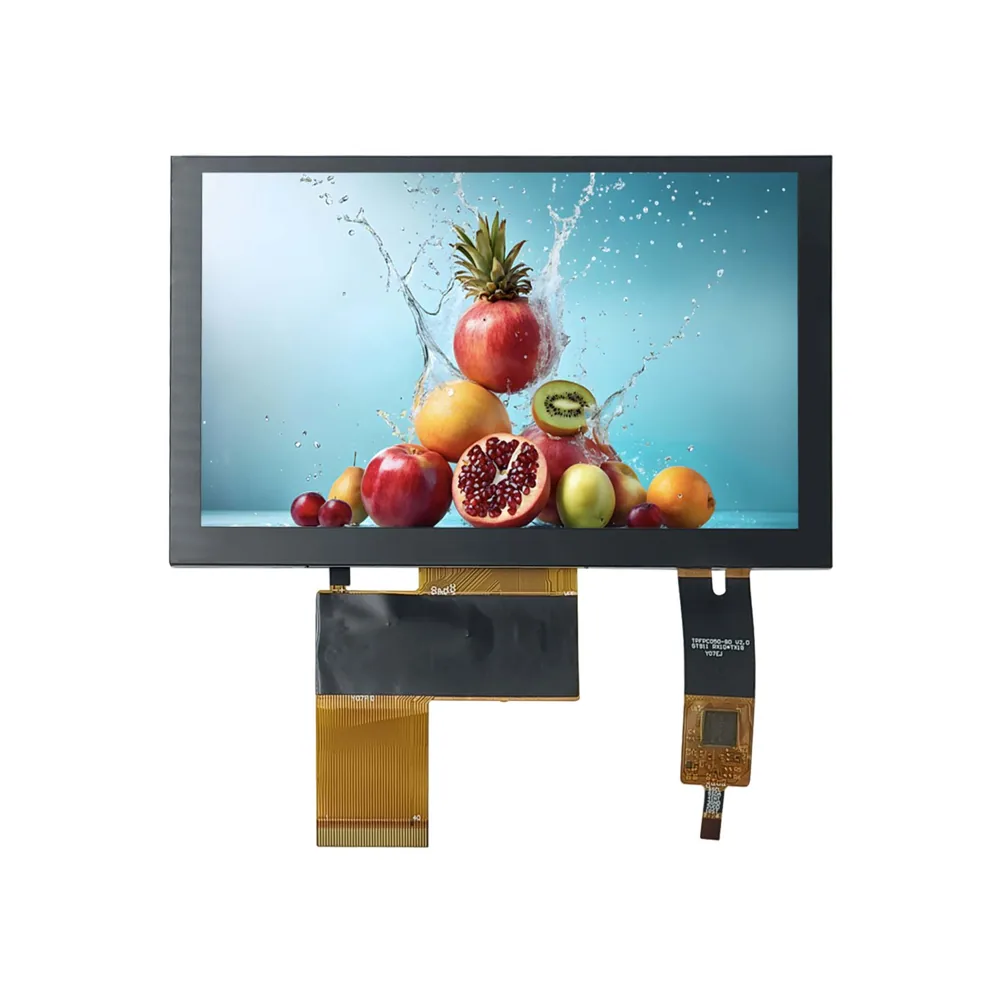
Connect the USB touch cable or documented USB upstream connection. When Windows provides Tablet PC Settings, open Setup to identify the touch screen. Follow the prompts, advancing past screens that do not accept touch. Tap the target screen when the identification prompt is displayed there.
Use the monitor manufacturer’s connection diagram to identify the touch port. HDMI delivers the picture in this setup, while touch normally has a separate connection. Microsoft’s digitizer mapping documentation explains why an external touch panel can send input to the primary display when automatic association fails. It describes Tablet PC Settings as an override for existing hardware. Look there for Setup after confirming the USB touch device is detected.
If Windows exposes the touch device but no association control appears, consult the controller documentation for that model. Keep the display layout as it will run in production while testing. Avoid transferring a controller utility or touch profile from another panel simply because the panels use similar connectors.
Tap a visible target near the center and each corner of the external screen. Watch which desktop receives the action and where it lands. Tapping the wrong monitor indicates an association problem. A stable quarter-turn mismatch on the correct screen points to orientation or the touch controller’s coordinate transform.
| Result | Check next |
|---|---|
| Upright picture, input occurs on another display | Confirm the Windows touch screen association. |
| No touch anywhere | Verify the touch USB connection and host recognition before trying calibration. |
| Touch lands on the correct display but axes are swapped or reversed | Confirm the vendor’s touch orientation setting for the installed panel. |
| Correct direction with a consistent offset | Confirm association first, then use the documented calibration procedure if available. |
Use a test application with targets near the screen edges where an offset is more obvious. Follow with a horizontal and vertical drag to reveal a reversed direction or a dead strip. If the installation uses a fixed kiosk layout, repeat the check after reconnecting and after a restart in that layout. CDTech’s interface selection guide gives context on where HDMI fits among display connections.
For a bench check, give the two Windows desktops different visible backgrounds or open the test application on only the touchscreen. That makes a wrong association obvious even when the pointer is difficult to see. Keep a keyboard or mouse available so you can undo a display change if the on-screen controls become awkward to reach.
If the taps are accurate at the center but drift toward an edge, rule out a stretched test window or inaccessible bezel area before adjusting calibration. Moving the test targets slightly inward helps show whether the problem is limited to the physical edge. If errors remain after the documented setup, record which targets fail in which orientation for the controller supplier.
In the setup covered here, HDMI carries the picture and the touchscreen uses USB for input. Consult the module’s port diagram before installation, and confirm which upstream port the manufacturer designates for touch. See Microsoft’s digitizer mapping documentation above for how Windows associates the input device with the display.
Identify and associate the touchscreen first. Use calibration for residual position error when the controller supports it, after touch is landing on the correct display. See Microsoft’s digitizer mapping documentation above for the association step.
Use Identify and reselect the physical HDMI touchscreen in the display arrangement. Apply the orientation only after verifying the target number. See Microsoft’s multiple-monitor instructions above.
Record the physical mount, Windows display number, orientation, USB connection, and results of the edge tests. Retest if the host, display cable, touch USB port, or kiosk display mode changes.
By continuing to use the site you agree to our privacy policy Terms and Conditions.